






Dividing Scenes
Solution
You can divide scenes in order to leave out the best parts and later cut out the rest.
1. Play back the scene you want to divide.
1-1. Touch a scene or story.
Playback will start.
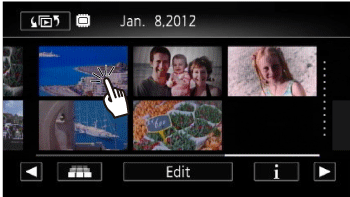
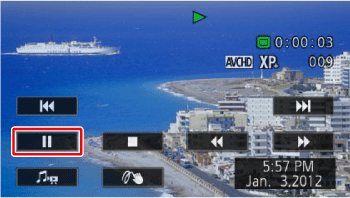
1-2. Touch the screen to display the playback controls, and then press [  ].
].
].
2. Open the scene division screen.
2-1. Touch [Edit].
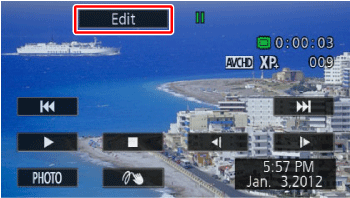
2-2. Touch [Divide].
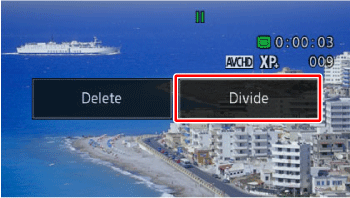
3. Bring the scene to a precise point, if necessary.
3-1. Playback controls will appear on the screen. Use any special playback modes (fast/slow playback, frame reverse/advance) as necessary to locate the desired image.
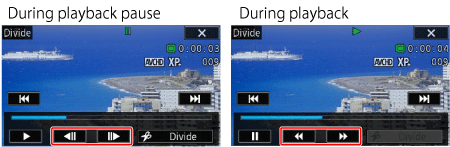
 During playback pause During playback pause |  / /  | Frame reverse/advance* |
 During playback During playback |  / /  | Fast playback backward/forward |
3-2. Stop playback momentarily at the position you want to divide.
4. Touch [Divide].
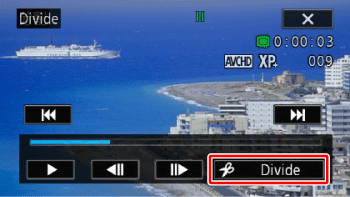
5. Touch [Yes].
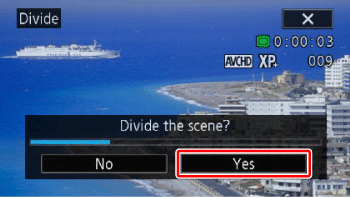
The video from the division point to the end of the scene will appear as a new scene in the index screen.
NOTE
- If the scene cannot be divided at the point where you paused the playback, advance/reverse a frame and then divide the scene.
- During the playback of a scene that was divided, you may notice some anomalies in the picture/sound at the point where the scene was cut.
- The following scenes cannot be divided:
- Video snapshot scenes and other scenes that are too short (less than 3 seconds).
- Scenes that were edited using the supplied software VideoBrowser* and were then transferred back to the camcorder.
* Depending on the model of your camcorder, this software might not come with it.
- Scenes cannot be divided within 1 second from the beginning or the end of the scene.