






Importing images using a memory card reader (ImageBrowser 6.x)
Solution
This section explains about how to use the supplied software (ImageBrowser Memory Card Utility) to download images from a card reader.
IMPORTANT
- To perform this operation, [ImageBrowser 6.x] needs to be installed or updated beforehand.
- Operations for [Mac OS X 10.6] and [ImageBrowser ver6.6] are explained here.
- If your computer has a built-in memory card reader, please refer to the instruction manual of your computer.
- For details on how to connect a memory card reader to a computer, please refer to the instruction manual of the memory card reader.
- Depending on the type of your computer or memory card reader, screen indications and operation procedures may vary slightly.
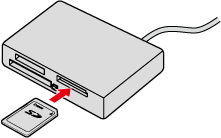
1. Insert a memory card into the memory card reader.
2. The following window appears.
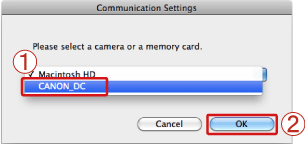
Select  [CANON_DC] from the pull-down menu.
[CANON_DC] from the pull-down menu. Click [OK].
3. The following window appears.
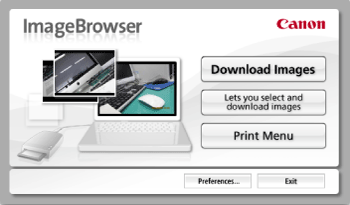
1. If you click [Download Images] in the window above, the software automatically starts importing the images that have not yet been imported.
[Download Images] in the window above, the software automatically starts importing the images that have not yet been imported.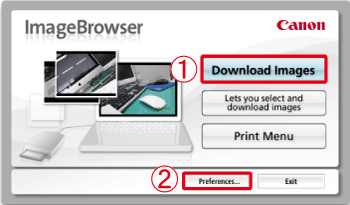
NOTE
- In this operation, the images that have already been imported are not imported. If you want to import images that were previously imported, select [Lets you select and download images].
REFERENCE
- If you wish to change the destination to which images are imported or the operation settings after images are imported, click [Preferences].
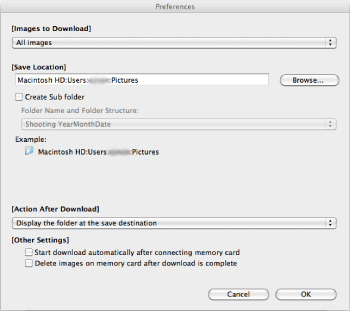
2. The download starts and the following window appears.
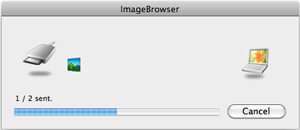
3. After the image download is complete, [ImageBrowser] will start.
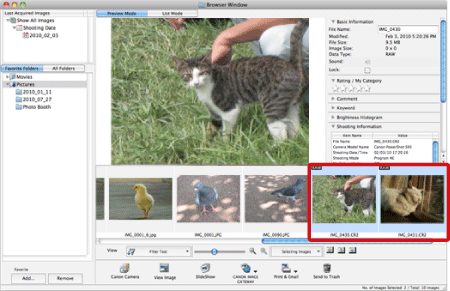
The imported images appear in the [Browser Area].
1. To select and import images, click [Lets you select and download images].
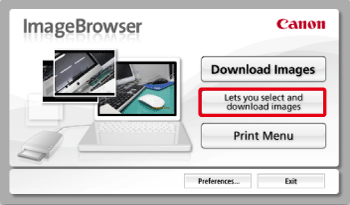
2. The following window appears.
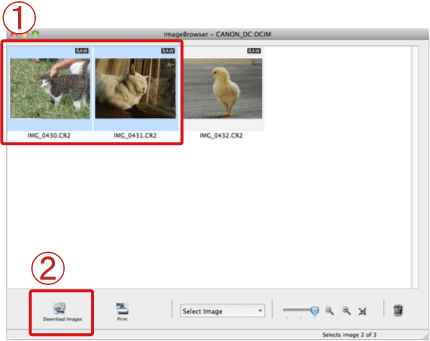
Images on the memory card are displayed, so click to select the images you want to download.
click to select the images you want to download. Click [Download Images].NOTE
- To select multiple images, click the images while holding down the <command> key on the keyboard.
3. The following window appears.
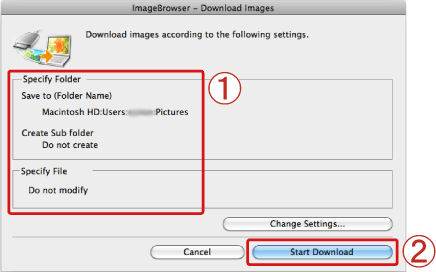 Confirm the settings for saving files, such as the destination.
After confirming the settings, click [Starts Download].
click [Starts Download].4. The download starts and the following window appears.
5. After the image download is complete, [ImageBrowser] will start.
This completes the image download.