







How do I Direct Print? (PictBridge)
Solution
Connect the camera to the printer and print directly from the camera.
CAUTION
- These instructions show how to print one image on one sheet of paper as an example.
1. Connect the camera to the printer.
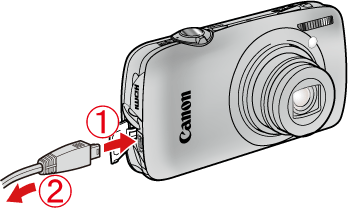
 Connect the [interface cable] to the camera's [DIGITAL terminal].
 Connect the other end of the cable to printer's USB terminal.
2. Turn the printer's power on.
3. Press the < Playback > ( ) button to turn on the camera.
) button to turn on the camera.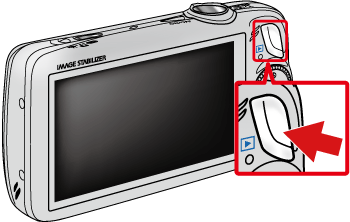
4. Operate the < directional buttons > left or right to display an image to print on the LCD monitor.
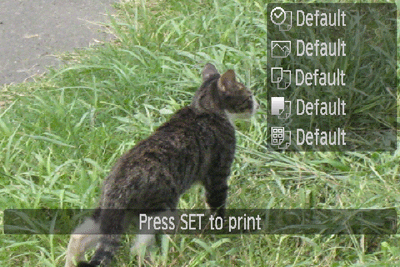
Press the < FUNC./SET > ( ) button.
) button.5. The following screen appears.
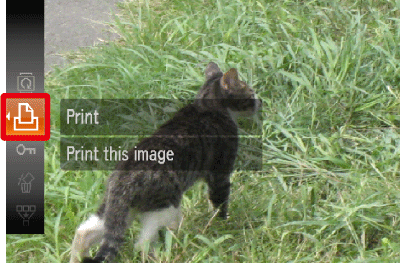
Make sure that the [Print] ( ) is selected, and then press the camera's < FUNC./SET > () button.
) is selected, and then press the camera's < FUNC./SET > () button.6. The screen for specifying the print settings appears.
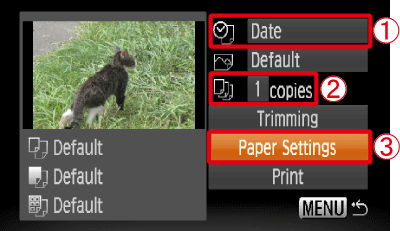 Operate the < directional buttons > left or right to select [Date] for adding the date. Operate the < directional buttons > left or right to specify the number of prints.
 Select [Paper Settings], and then press the camera's < FUNC./SET > () button.
7. The screen for setting the paper size appears.
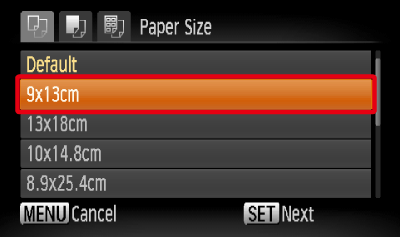
Operate the < directional buttons > up or down to select the paper size, then press the camera's < FUNC./SET > () button. In the image shown above, the [9 x 13 cm] size is selected.
) button. In the image shown above, the [9 x 13 cm] size is selected.8. The screen for setting the paper type appears.

Operate the < directional buttons > up or down to select the paper type, and then press the camera's < FUNC./SET > () button. In the image shown above, [Photo] is selected.
) button. In the image shown above, [Photo] is selected.9. The layout (border) settings screen appears.

Operate the < directional buttons > up or down to select the layout type, and then press the camera's < FUNC./SET > () button. In the image shown above, [Bordered] is selected.
) button. In the image shown above, [Bordered] is selected.10. Return to the print setting screen.
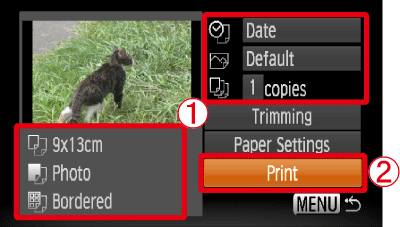 Make sure that the settings are correct. Select [Print] and press the camera's < FUNC./SET > () button to start printing.