







Using EOS Utility 3.x to Send Images to a Computer (Wi-Fi Function) (EOS M50)
Solution
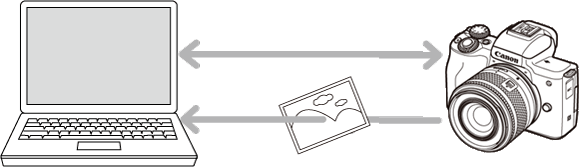
You can save images from the camera to a computer via Wi-Fi using EOS Utility (EOS software).
This page describes how to connect the camera and a computer directly via Wi-Fi.
REFERENCE
To connect to a computer via Wi-Fi using a Wi-Fi access point, see the camera's Wi-Fi (Wireless Communication) Function Instruction Manual. The Instruction Manuals can be downloaded from the Canon Web site.
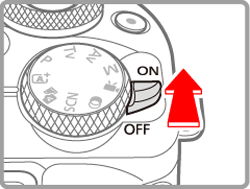
1. Turn the camera on.
2. Press the  button.
button.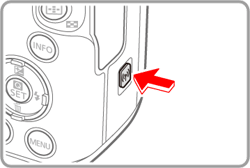
- If the wireless settings screen is not displayed initially when you press the button, press the button again.
3. Choose [Enable] and press the  button.
button.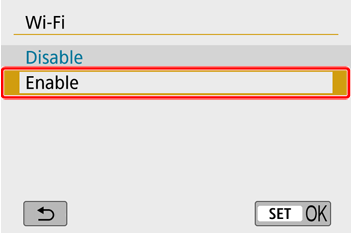
4. A message about nicknames is displayed.
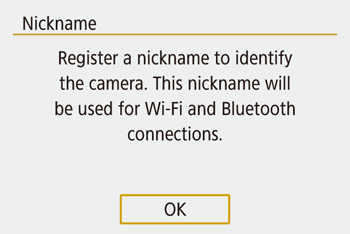
- Press the button and check the nickname (camera name).
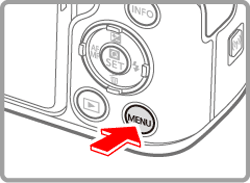
5. After checking, return to the function settings menu: MENU button.
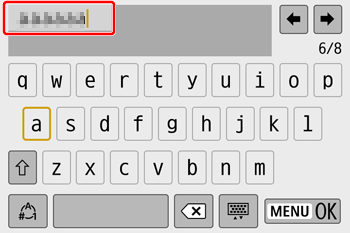
REFERENCE
- Nicknames are 1 – 8 characters and can be changed later.
6. Choose [OK] and press the button.
button.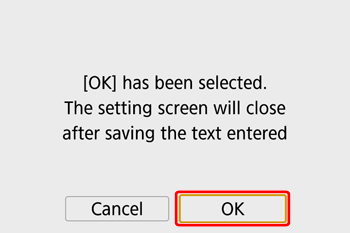
7. Press the MENU button.
Return to the function settings menu.
NOTE
- Wi-Fi and Bluetooth signal transmission can be turned off as follows.
- Wi-Fi: Press the MENU button and choose [  ] -> [
  ] -> [Wireless communication settings] -> [Wi-Fi settings] -> [Wi-Fi] -> [Disable].
] -> [ ] -> [Wireless communication settings] -> [Wi-Fi settings] -> [Wi-Fi] -> [Disable]. - Bluetooth: Press the MENU button and choose [ ] -> [ ] -> [Wireless communication settings] -> [Bluetooth function] -> [Bluetooth function] -> [Disable].
] -> [ ] -> [Wireless communication settings] -> [Bluetooth function] -> [Bluetooth function] -> [Disable].1. With the camera on, press the button.
button.
- If the wireless settings screen is not displayed initially when you press the button, press the button again.
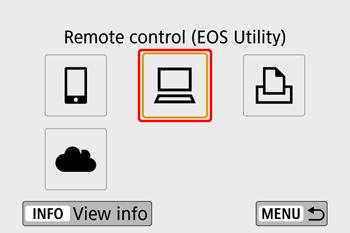
2. Choose  .
.
.
3. Choose [Register a device for connection] and press the button.
button.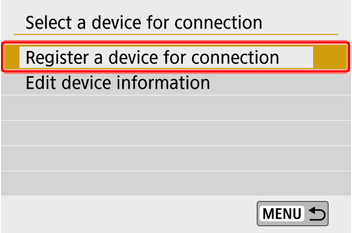
4. Check the SSID ( ) and password (
 ).
).
) and password ().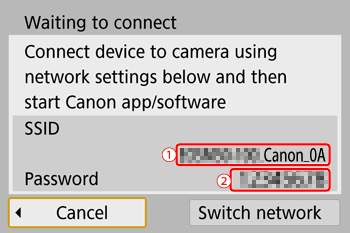
NOTE
- The SSID ends with _Canon0A.
5. Connect the computer to the network.
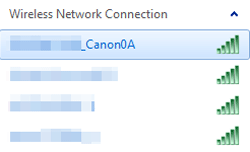
- In the computer’s Wi-Fi settings, choose the SSID (network name)() displayed on the camera to establish a connection.
- In the password field on the computer, enter the password () displayed on the camera.
6. After password authentication on the computer, [Start pairing devices] is displayed on the camera.
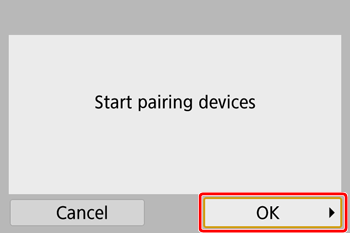
- Choose [OK], press the button.
7. The following message is displayed.
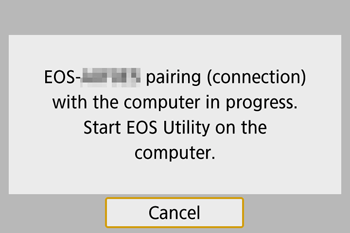
8. Start EOS Utility.
- For Windows 7, click the [Start] button and select [All Programs] ->[Canon Utilities] ->[EOS Utility] ->[EOS Utility].
- For Windows 8, right-click the [Start] screen, then click [All Apps] on the bottom right side of the screen. On the [Apps] screen that is displayed, click [EOS Utility].
- For Windows 8.1, click [
 ] on the bottom left side of the [Start] screen. On the [Apps] screen that is displayed, click [EOS Utility].
 - For Windows 10, click the [Start] button, then click [All Apps] and then click [EOS Utility].
- For Mac OS X, click the [EOS Utility] icon in the Dock.
9. In EOS Utility, click [Pairing over Wi-Fi/LAN].
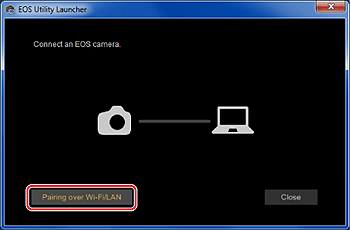
REFERENCE
- If a firewall-related message is displayed, select [Yes].
10. The EOS Pairing Software window is displayed.
Choose the camera to connect to and click [Connect].
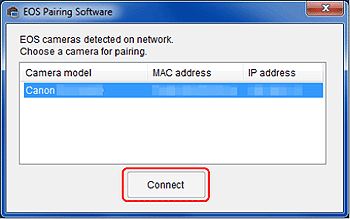
NOTE
- If a camera is already connected, it is not displayed in the list.
- If multiple cameras are displayed, identify the camera to connect to by its MAC address displayed on the camera's LCD monitor.
11. Establish a Wi-Fi connection.
Choose [OK] and press the button.
button.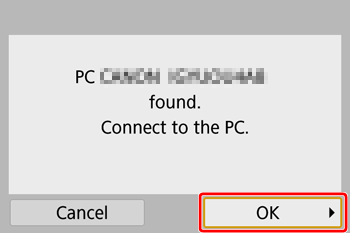
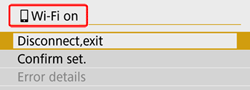
- The camera and computer are now connected via Wi-Fi.
REFERENCE
- [Wi-Fi on] is displayed on the camera.
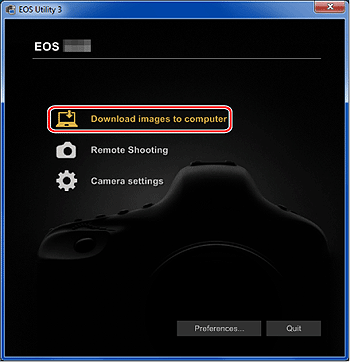
1. After the main window of EOS Utility appears, click [Download Images to computer].
2. When the following window appears, click either () to [Start automatic download] or () to [Select and download] images.
) to [Start automatic download] or () to [Select and download] images.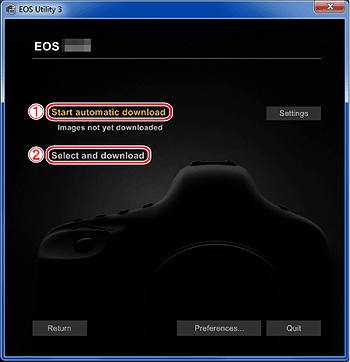
NOTE
By default, downloaded images are saved in [Pictures]. You can change the save destination for images to download in [Preferences].
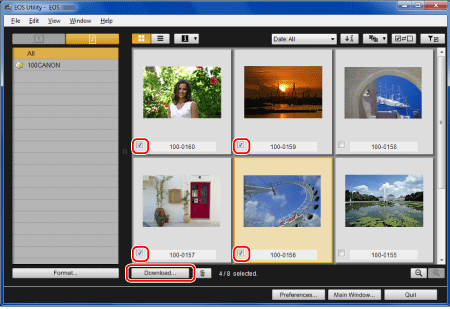
3. If you have selected [Select and download] images in step 2, the viewer window appears and the images in the memory card are displayed in a list.
In the displayed list of images, checkmark the images to download and click [Download] (here, 4 images are selected).
If you have selected [Start automatic download], proceed to step 5.
NOTE
- You can click the [
 ] button to change the thumbnail order.
 - For movie files, the [
 ] icon appears on the top left of the image.
 - You can click [
 ] in the upper right of the window to sort the images with various conditions and choose images you want to download.
4. The [Download image] dialog box appears. To change the save destination, click [Destination Folder] and in the dialog box that appears, change the destination. Click [OK].
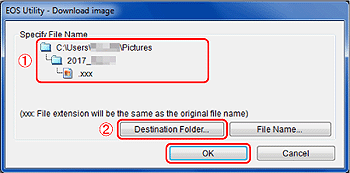 : Displays the save destination on the computer : Specify the save destination
5. The images are downloaded to your computer.
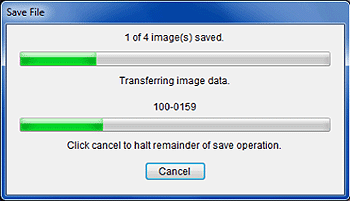
6. When images have been downloaded, click [Quit] and close EOS Utility.
- Downloading images is now complete.
Use the on-screen keyboard to enter wireless settings and other information.
Note that the length and type of information you can enter varies depending on the function you are using.
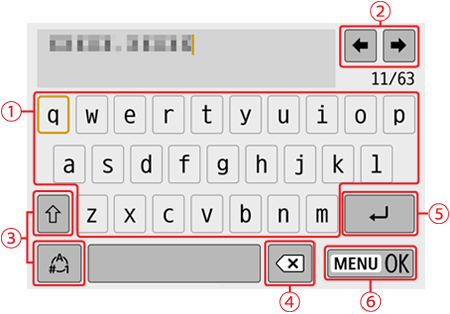
| •Entering characters Touch a character to enter it. |
| •Moving the cursor Touch  / /  . . |
 | •Switching input modes : Switch to uppercase. : Switch to uppercase. : Switch to numbers or symbols. : Switch to numbers or symbols. |
 | •Deleting characters Touch  . . |
 | •Entering line breaks Touch  . . |
 | •Confirming input Touch  . . |
REFERENCE
- Returning to the previous screen