






Registering IPTC Information To the Camera With EOS Utility 3.5
Solution
If this function for adding IPTC* information is equipped with the camera, you can edit and register IPTC* information. IPTC information registered on the camera can be added to shot images. IPTC information is comment information, such as captions, credits, and shooting location.
*International Press Telecommunications Council
IMPORTANT
- If you use Windows OS, you must be logged in as an Administrator.
1. Connect the camera to a computer with an interface cable.
- Set the camera's Auto power off to [ Disable ].
2. Turn the camera's power switch to <ON>.
3. Start EOS Utility Ver.3.x.
If EOS Utility does not start automatically, press the [ Start ] button and then select [ All Programs ]->[ Canon Utilities ]->[ EOS Utility ].
4. When the screen shown below appears, click [ Camera settings ].
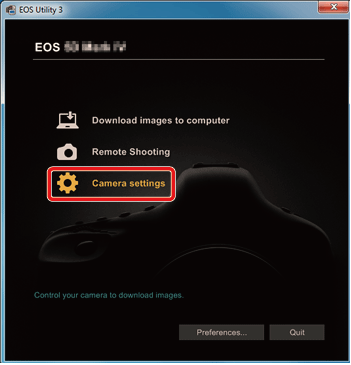
5.Click [Register IPTC information].
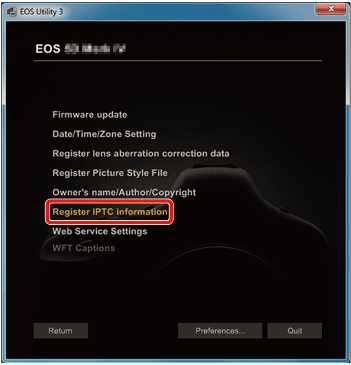
6.Edit and register information as needed.
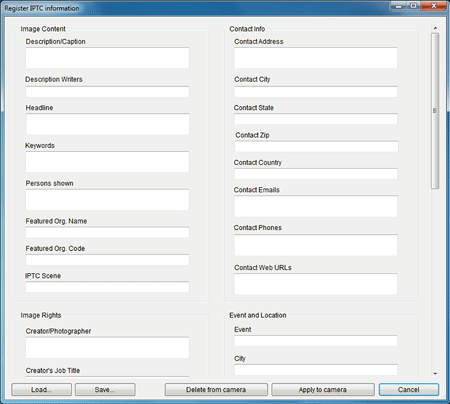
- [Register IPTC information] is displayed with current camera settings entered. Even if IPTC information is not set, [Author] and [Copyright] information are displayed if they are registered in the camera.
- Clicking the [Apply to camera] sets the IPTC information to the camera and then also sets the camera's Custom Function [Add IPTC information] option to [ON] and closes the [Register IPTC information] dialog box.
- Clicking the [Delete from camera] deletes all IPTC information registered in the camera and then also sets the camera's Custom Function [Add IPTC information] option to [OFF] and closes the [Register IPTC information] dialog box. After clicking the [Delete from camera], IPTC information is not added to shot images.
- You can click the [Save] to save information displayed in the current [Register IPTC information] dialog box as an XMP file.
- You can click the [Load] to load IPTC information saved to a file using this function.