






Printing without a Power Outlet (SELPHY CP1200)
Solution
To print where no power outlet is available, use Battery Pack NB-CP2LH (sold separately). On a full charge, up to about 54 sheets* of postcard-size paper can be printed.
* According to Canon testing. May vary depending on printing conditions.
1. Remove the battery pack mounting cover.
With the switch held in the direction of the arrow ( ), move the cover in the direction of the arrow (
 ) to remove.
), move the cover in the direction of the arrow () to remove.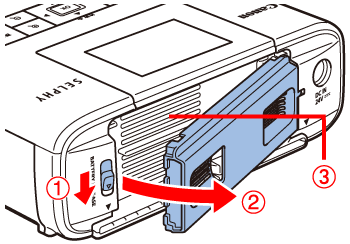
 Air Vent
2. Remove the battery terminal cover.
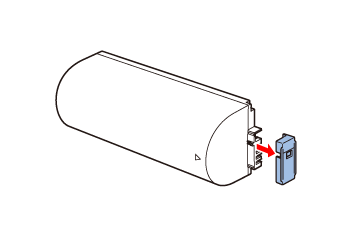
3. Attach the battery pack.
Slide the terminal-end in the direction of the arrow () and insert the other end () until it clicks into place.
) and insert the other end () until it clicks into place.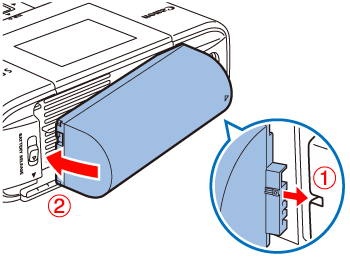
NOTE
- Battery Pack NB-CP2L (sold separately) can also be used. On a full charge, up to about 36 sheets of postcard-size paper can be printed. According to Canon testing. May vary depending on printing conditions.
Once SELPHY is connected to a power outlet, charging starts and [  ] blinks on the screen.
] blinks on the screen.- When charging is finished in about four hours (at room temperature), [ ] will no longer be displayed.
- SELPHY can be used even while [ ] is blinking by turning it on. However, charging stops. When power is turned off, [ ] blinks and charging resumes.
NOTE
- For battery precautions, refer to the battery user manual.
- When [
 ] is displayed, place SELPHY in an environment at operating temperature, and charge once it has adjusted to the ambient temperature.
 - When [
 ] is displayed in red, the battery has reached the end of its life. Please purchase a new battery.
 - When [ ] is displayed, press and hold any button other than [
 ] for 3 seconds or more to clear [ ]. After the screen is no longer displayed and while the printer is charging, press any button other than [ ], and [ ] will appear for around 10 seconds.