






Selecting and Printing Images from History (Reprint) (SELPHY CP1200)
Solution
Images printed from [Select & Print] remain in the history. Images can be selected from the print history and printed.
IMPORTANT
Follow the steps below to erase the history.
- Remove the memory card
- Turn off SELPHY
1. Access the print history.
Press the [  ] button, press the [
  ], [
], [  ] buttons to select [Reprint], and then press the [
  ] button.
] button, press the [ ], [ ] buttons to select [Reprint], and then press the [ ] button.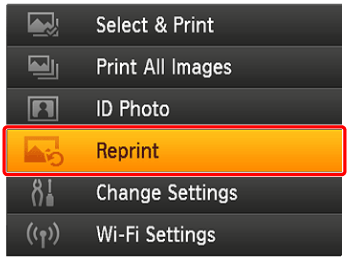

Previously printed images, the Page Layout, and paper cassette as shown below are displayed as history information.
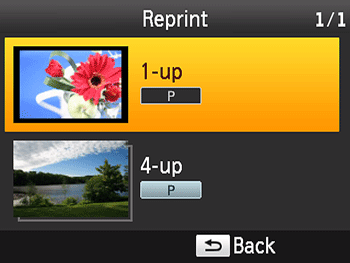
2. Choose an image.
Press the [ ], [ ] buttons to select the image you want to print, and then press the [ ] button.
], [ ] buttons to select the image you want to print, and then press the [ ] button.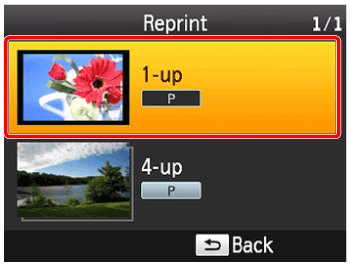
The following screen is displayed.
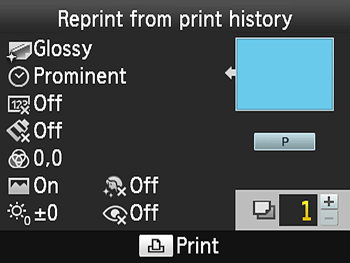
3. Choose the number of copies to print.
Press the [ ], [ ] buttons to select [Number of copies], and then press the [ ] button.
], [ ] buttons to select [Number of copies], and then press the [ ] button.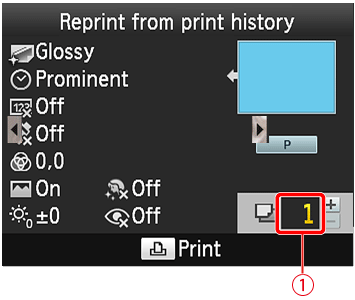
 Number of copies
4. Press the [  ] button to start printing.
] button to start printing.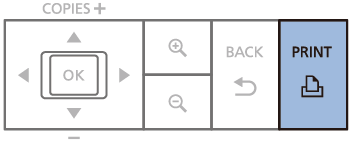
NOTE
- To cancel printing, press the [
 ] button.
IMPORTANT
- SELPHY can store up to 10 items in the print history.
- History information settings cannot be changed for printing.
- The print history is not stored when [Shuffle] or [Index] is selected in Page Layout.
- The print history is not stored when printing in progress is canceled.
- Printing is not available when a paper cassette or ink cassette that differs from that in the history information is inserted.
Selecting and printing images from history (Reprint) is now completed.