






Switching between Displays on the LCD Screen (Shooting/Playback) (LEGRIA HF G25)
Solution
REFERENCE
- If you do not wish shooting information to be displayed on the connected TV screen, set the menu’s [Output Onscreen Displays] to [Off].
- For information on how to connect to a TV, please see Connecting the Camcorder to a TV and Playing Back Recordings on a TV Screen (LEGRIA HF G25) .
You can display a grid or a horizontal line at the center of the screen. Use the markers as a reference to make sure your subject is framed correctly (vertically and/or horizontally).
- Using the onscreen markers will not affect the recordings.
NOTE
- The information displays or buttons cannot be hidden while the camcorder is shooting.
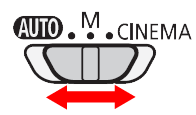
1. Set the mode switch to <M> or <CINEMA>.
2. Turn on the camcorder and make sure it is set to a recording mode.
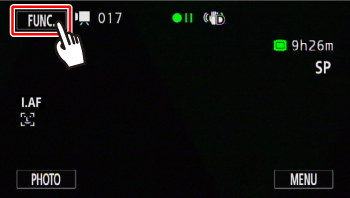
3. Touch [  ].
].
].
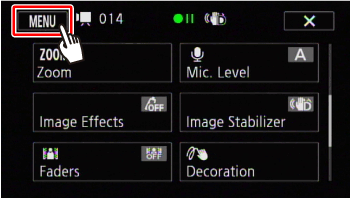
4. Touch [  ].
].
].
5.  Drag your finger up or down to bring [Onscreen Markers] into the orange selection bar, and then
  touch the orange frame on the right.
Drag your finger up or down to bring [Onscreen Markers] into the orange selection bar, and then touch the orange frame on the right.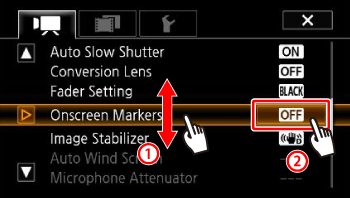
6. Drag your finger up or down to select an option.
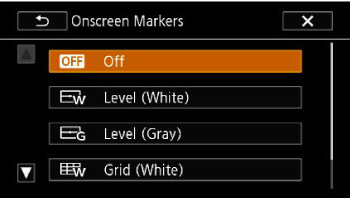
7. Touch [  ] to close the menu.
] to close the menu.8. The level or grid set will appear on the screen.
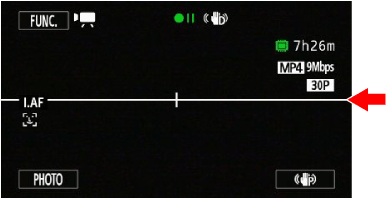
* If [Level (White)] was selected
With every scene or photo recorded, the camcorder keeps a data code (date/time of recording, information about the camera setup, etc.).
You can select the information to be displayed with the [Data Code] setting.
1. Turn on the camcorder.
2. Press < > to set the camcorder to Playback mode.
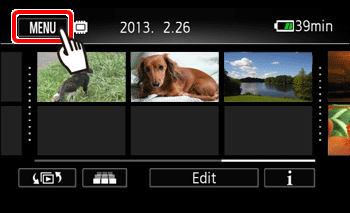
> to set the camcorder to Playback mode. 3. Touch [ ].
].
4. Drag your finger up or down to bring [Data Code] into the orange selection bar, and then touch the orange frame on the right
Drag your finger up or down to bring [Data Code] into the orange selection bar, and then touch the orange frame on the right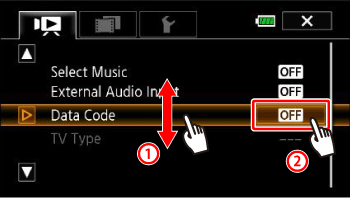
5. Touch any of the available options.
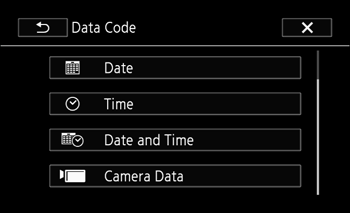
6. Touch [ ] to close the menu.
] to close the menu.7. When the movie is played back, the data code will appear.
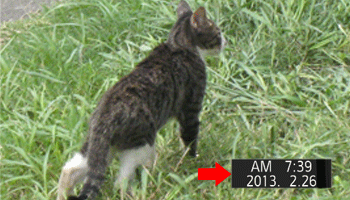
* If [Date and Time] was selected
NOTE
The data code will appear when the screen is touched, regardless of the selected option.