
How do I resize images captured by EOS REBEL T5i / EOS 700D with the camera? (How to resize an image to make the pixel count lower.)
Solution
NOTE
Icons used on this page:
< >: Playback tab 1 / <
 >: Setting button / <
 >: Cross key / <
 >: Index/Reduce button
>: Playback tab 1 / <>: Setting button / <>: Cross key / <>: Index/Reduce buttonWith your camera, you can resize an image to make the pixel count lower and save it as a new image. Resizing an image is possible only with JPEG L / M / S1 / S2 images.
IMPORTANT
JPEG S3 and RAW images cannot be resized.
1. Flip out the LCD monitor, then set the power switch to <ON>.
For the details about how to open the LCD monitor, see How to use the vari-angle LCD monitor of the EOS Rebel T5i/EOS 700D.
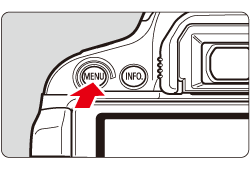
2. Press the <MENU> button to display the menu.
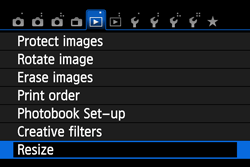
3. Under the [ ] tab, select [Resize] menu option, and then press <>.
] tab, select [Resize] menu option, and then press <>. The images will be displayed.
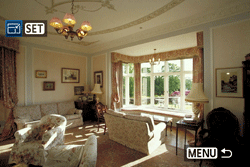
4. Press the <> key to select the image you want to resize.
> key to select the image you want to resize.By pressing the <> button, you can switch to the index display and select an image.
> button, you can switch to the index display and select an image.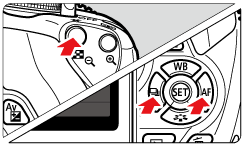
5. Press <> to display the image sizes.
> to display the image sizes.Press the <> key to select the desired image size, then press <>.
> key to select the desired image size, then press <>.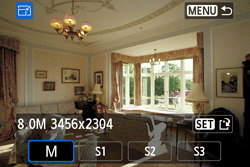
NOTE
The target sizes ( M / S1 / S2 / S3 ) in this window will be smaller than the original size. For example, if the original image size is S1, you can select S2 or S3.
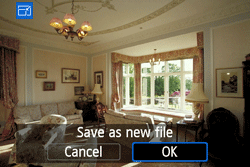
6. Select [OK] to save the image, and then press <>.
>.
7. Check the destination folder and image file number, then select [OK].
To resize another image, press the <MENU> button to return to the image selection screen, and then repeat steps 4 to 7.
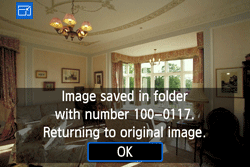
8. To exit and return to the menu, press the <MENU> button.
The [4.5M 2592x1728] image size displayed in step 5 has a 3:2 aspect ratio. The image size according to aspect ratios is shown in the table below. For asterisked image-recording quality, the pixel count does not exactly match the aspect ratio. The image will be slightly cropped.
| Quality | Aspect Ratio and Pixel Count | |||
| 3:2 | 4:3 | 16:9 | 1:1 | |
 | 3456x2304 (8.0 megapixels) | 3072x2304 (7.0 megapixels) | 3456x1944 (6.7 megapixels) | 2304x2304 (5.3 megapixels) |
 | 2592x1728 (4.5 megapixels) | 2304x1728 (4.0 megapixels) | 2592x1456* (3.8 megapixels) | 1728x1728 (3.0 megapixels) |
 | 1920x1280 (2.5 megapixels) | 1696x1280* (2.2 megapixels) | 1920x1080 (2.1 megapixels) | 1280x1280 (1.6 megapixels) |
 | 720x480 (350,000 pixels) | 640x480 (310,000 pixels) | 720x400* (290,000 pixels) | 480x480 (230,000 pixels) |