






How do I set the White Balance? (EOS 6D)
Solution
The White Balance feature on this camera is set to "Auto White Balance" at the time of purchase. Normally, the <AWB> (Auto) setting will obtain the correct white balance. If natural looking colors cannot be obtained with <AWB>, you can set the white balance manually to suit the respective light source.
NOTE
- In the Basic Zone modes, [AWB] will be set automatically.
- For more information about the White Balance, refer to Matching the Camera Settings to the Light Source (What is White Balance?).
REFERENCE
About White Balance
To the human eye, a white object looks white regardless of the type of lighting. With a digital camera, the color temperature is adjusted with software to make the white areas look white. This adjustment serves as the basis for the color correction. With this function, pictures with natural color shades can be taken.
To set the White Balance, follow the steps below.
1. Set the power switch to <ON>.
2. Press the <MENU> button.
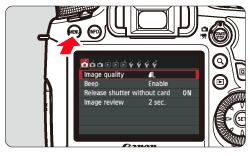
3. Under the [  ] tab, select [White balance], then press the <SET> button.
] tab, select [White balance], then press the <SET> button.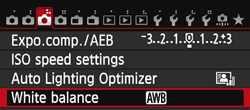
4. Select the desired setting, then press the <SET> buton.
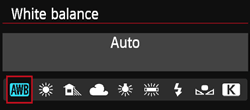
| Display | Mode | Color Temperature (Approx. K: Kelvin) |
|---|---|---|
 | Auto | 3000-7000 |
 | Daylight | 5200 |
 | Shade | 7000 |
 | Cloudy, twilight, sunset | 6000 |
 | Tungsten light | 3200 |
 | White fluorescent light | 4000 |
 | Flash use | Automatically set* |
 | Custom | 2000-10000 |
 | Color temperature | 2500-10000 |
Otherwise, it will be fixed to approx. 6000K.
NOTE
<  >(Custom White Balance) enables you to manually set the white balance for a specific light source for better accuracy. Do this procedure under the actual light source to be used. For more information on registering custom white balance, please refer to the instruction manual that came with your camera.
>(Custom White Balance) enables you to manually set the white balance for a specific light source for better accuracy. Do this procedure under the actual light source to be used. For more information on registering custom white balance, please refer to the instruction manual that came with your camera.This completes the white balance setting.