






Adding transition effects (faders) to scenes
Solution
The camcorder offers two professional looking transition effects to ade-in or fade-out scenes. You have the option to activate the fader only one time or every time you start or stop recording.
IMPORTANT
- The screens and settings that appear may differ depending on the model you are using.
- When the [Camera Mode] is set to [
 ] (Auto), this setting cannot be made. Please make the setting in either [
  ] (Manual) or [
  ] (Cinema).
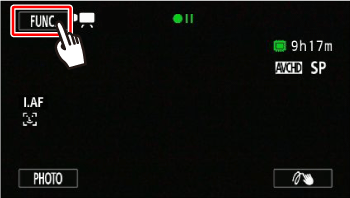
1. Touch [  ].
].
].
2.  Drag your finger up and down to display the rest of the panel, and then
  touch [Faders].
Drag your finger up and down to display the rest of the panel, and then touch [Faders].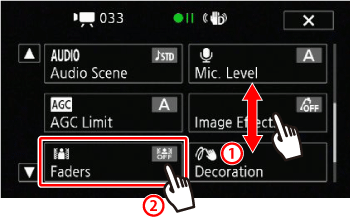
3. Touch any of the available options.
Touch [  (Off)] to turn faders off.
(Off)] to turn faders off. 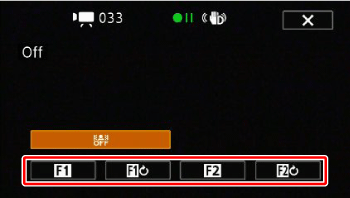
The different effects are as shown below.
- Fade Trigger

- Wipe

4. Touch [  ].
].
].5. Press <START/STOP> in record pause mode ( ) to start recording with a fade in. Press <START/STOP> while recording (
 ) to fade out and pause the recording.
) to start recording with a fade in. Press <START/STOP> while recording () to fade out and pause the recording.NOTE
- When you apply a fader, not only the picture but also the sound will fade in or out.
- Faders cannot be used in the following cases:
- While using the [Old Movies] cinema-look filter in  mode.
mode.
mode.- When recording scenes with decorations.
- When recording video snapshot scenes.
- While pre-recording is activated.
- You can select whether to fade to/from a black screen or a white screen with the [Fader Setting] setting.