






No Printing Results/Printing Is Blurred/Colors Are Wrong/White Streaks
Issue
- No Printing Results
- Printing Is Blurred

- Colors Are Wrong

- White Streaks

Cause and Solution
If the Ink Cartridge Locking Cover is not closed securely, ink may not be ejected correctly.
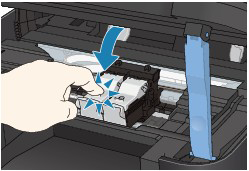
Open the Scanning Unit (Cover), open the Ink Cartridge Locking Cover, then close the Ink Cartridge Locking Cover.
When you close the Ink Cartridge Locking Cover, push the Ink Cartridge Locking Cover until it clicks into place.
Check 3: Print the Nozzle Check Pattern and perform any necessary maintenance operations such as Print Head Cleaning
Print the Nozzle Check Pattern to determine whether the ink ejects properly from the print head nozzles.
Refer to [ Printing the Nozzle Check Pattern ] [ Cleaning the Print Head ] [ Cleaning the Print Head Deeply ]
- If the Nozzle Check Pattern is not printed correctly:
After performing the Print Head Cleaning, print the Nozzle Check Pattern and examine the pattern.
- If the problem is not resolved after performing the Print Head Cleaning twice:
Perform the Print Head Deep Cleaning.
If the problem is not resolved after performing the Print Head Deep Cleaning, turn off the machine and perform another Print Head Deep Cleaning after 24 hours. When you turn the machine off, do not unplug it from the power supply.
- If the problem is not resolved after performing the Print Head Deep Cleaning twice:
Ink may have run out. Replace the FINE Cartridge.
Replacing a FINE Cartridge
When remaining ink cautions or errors occur, the message will appear to inform you of the error.
Refer to [ An Error Message Is Displayed on the LCD ].
Check 5: When using paper with one printable surface, make sure that the paper is loaded with the printable side facing up
Printing on the wrong side of such paper may cause unclear prints or prints with reduced quality.
Refer to the instruction manual supplied with the paper for detailed information on the printable side.
- When copying, see also the sections below:
Clean the Platen Glass or the glass of ADF.
REFERENCE
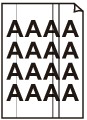
- If the glass of ADF is dirty, black streaks appear on the paper as shown below.
Cleaning the Platen Glass and Document Cover
Loading Paper
Loading Plain Paper / Photo Paper
See[Loading Paper ]
When loading the original on the Platen Glass, the side to be copied should be face down. When loading the original in the ADF, the side to be copied should be face up.
Print from the digital camera directly, or reprint from the computer.
If you copy a printout done by this machine, print quality may be reduced.