







Uninstalling applications (Windows)
Solution
This section describes how to uninstall the applications of the [COMPACT PHOTO PRINTER Solution Disk] from your computer. The following instructions are intended for SELPHY Photo Print.
(Uninstallation is an operation to remove a driver / software when it is no longer needed, or if a problem occurs.)
CAUTION
- The instructions in this section are intended for Windows Vista. If you are using Windows XP, the actual on-screen displays and procedures may differ slightly from those indicated here.
- Please log on to the computer as an Administrator to uninstall the applications.
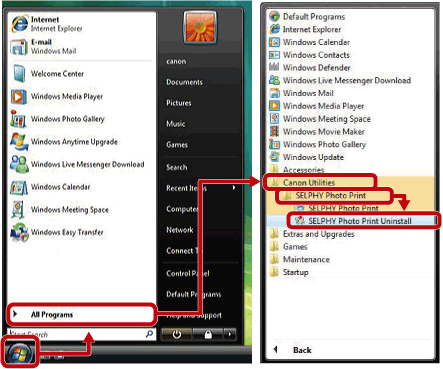
1. From [Start] menu, select [All programs] (or [Programs]) > [Canon Utilities] > [SELPHY Photo Print] > [SELPHY Photo Print Uninstall].
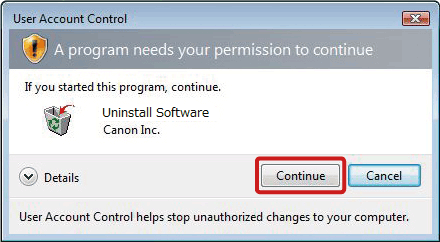
2. When the [User Account Control] dialog box appears, click [Continue].
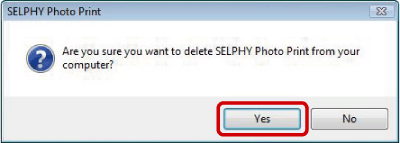
3. When the [SELPHY Photo Print] dialog box appears, click [Yes].
4. After the [Uninstall SELPHY Photo Print] window is displayed, click [OK], and then restart your PC.
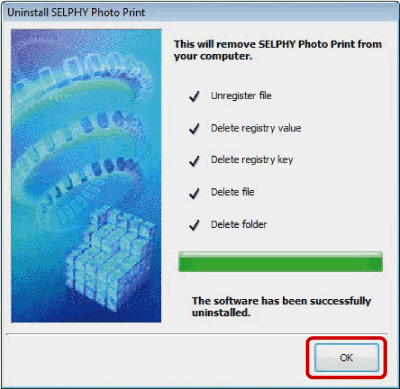
This completes the process of uninstalling the application.