







How do I set the Date/Time?
Solution
You will need to set the date and time of the camcorder before you can start using it. The [ Date/Time ] screen will appear automatically when the camcorder's clock is not set.
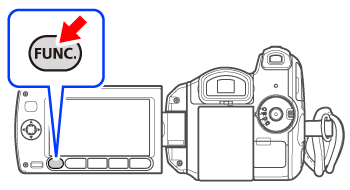
1. Press <  >.
>.
>.
2. Select <  > the [
  Menu] icon and press <
  > to open the setup menus.
> the [ Menu] icon and press < > to open the setup menus.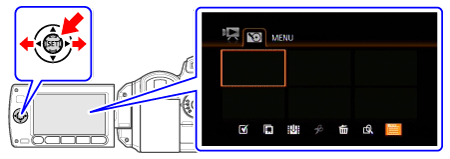
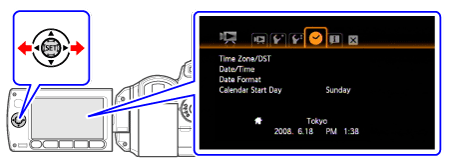
3. Select < >  .
.
> .
4. Select <  > [ Date/Time ] and press < >.
> [ Date/Time ] and press < >.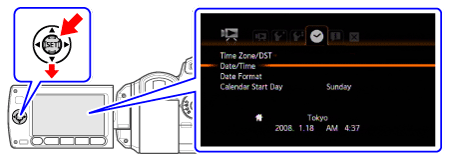
5. Change <  > each field of the date and time and move <
  > to the next field.
> each field of the date and time and move < > to the next field.Select < > [ OK ] and press <  > to start the clock and close the setup screen.
> [ OK ] and press < > to start the clock and close the setup screen.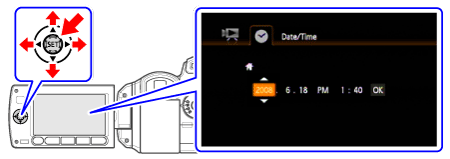
6. Press < > to close the menu.
> to close the menu.IMPORTANT
- When you do not use the camcorder for about 3 months, the built-in rechargeable lithium battery may discharge completely and the date and time setting may be lost. In such case, recharge the built-in lithium battery and set the time zone, date and time again.
- The date appears in a year-month-day format only in the first setup screen. In subsequent screen displays the date and time will appear as month-day-year (for example, [ JAN. 1, 2008 12:00 AM ]). You can change the date format.
Change the time zone to match your location. The default setting is New York.
1. Press < >.
>.2. Select < > the [ Menu] icon and press < > to open the setup menus.
> the [ Menu] icon and press < > to open the setup menus.3. Select < > .
> .4. Select < > [ Time Zone/DST ] and press < >.
> [ Time Zone/DST ] and press < >.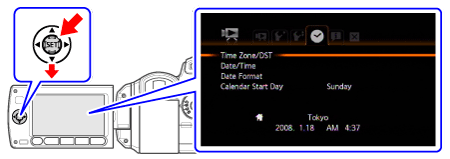
5. Select < > [  Your local time zone ] or [
  Local time at your destination* ].
> [ Your local time zone ] or [ Local time at your destination* ].Select < > time zone and press < >.
> time zone and press < >.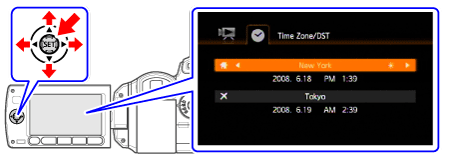
6. Press < > to close the menu.
> to close the menu.* To adjust for daylight saving time, select the area name marked with a  .
.
.