






How do I download images to the computer on a Windows? (Direct Transfer)
Solution
Download images to your computer using the camera's <PRINT/SHARE> Button.
CAUTION
- [ZoomBrowser EX] from the supplied Solution Disk must be installed on your computer for this operation.
- Operations for Windows Vista are explained here. Images displayed or operation might differ slightly in Windows XP.
- As the actual locations of buttons / switches on cameras vary depending on the camera model, the illustrations that appear on this page may differ from your camera.
- Some of the images that appear on this page contain a specific camera model name, however the actual model name varies depending on the camera used.
1. Connect the camera's DIGITAL terminal to the computer's USB port using the [interface cable] supplied with your camera.
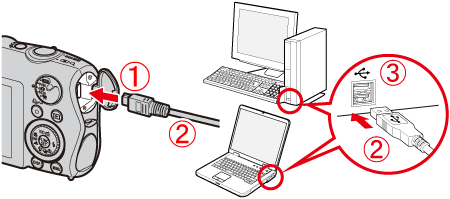
 DIGITAL terminal on the camera
  [Interface cable]
 USB port on the computer
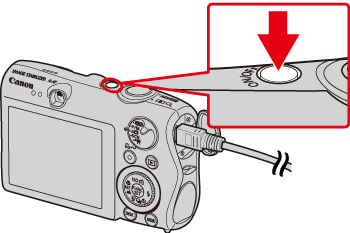
2. Press the <Power> button on the camera.
3. The following window appears.
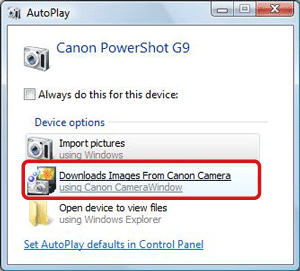
Click [Downloads Images From Canon Camera].
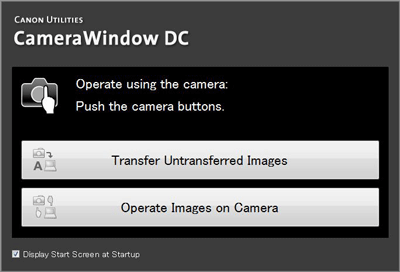
4. The [Camera Window] startup screen will appear.
5. Make sure the camera's <Print/Share> ( ) button is lit.
) button is lit.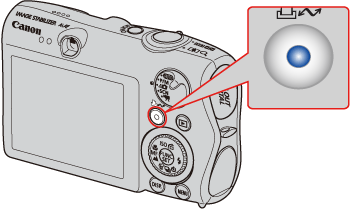
6. When the following menu appears on the camera's LCD monitor, select [All Images] (to download all the images recorded on the memory card).
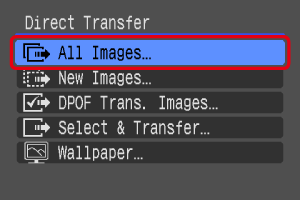
If the menu above does not appear on the camera's LCD monitor, press the camera's <MENU> ( ) button.
) button.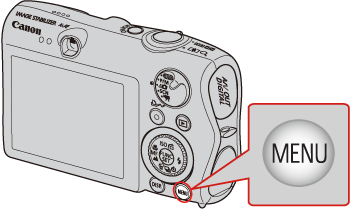
Press the camera's <Print/Share> ( ) button.
) button.7. The <Print/Share> ( ) button blinks and the computer starts downloading the images.
) button blinks and the computer starts downloading the images.
8. When downloading has finished, the <PRINT/SHARE> ( ) button stops blinking and remains lit.
) button stops blinking and remains lit.9. The last image downloaded appears. Click somewhere inside the screen.

10. [Camera Window] appears. Click ( ) at in the bottom right part of the screen to close the window.
) at in the bottom right part of the screen to close the window.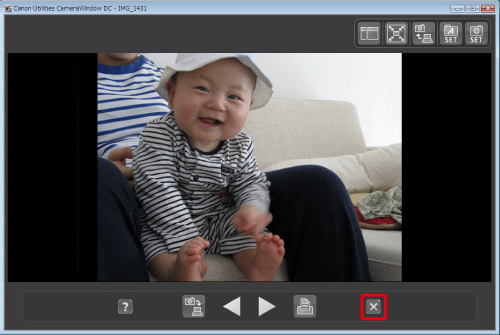
11. After you close [Camera Window], [ZoomBrowser EX] starts.
Downloaded images are saved in folders by shooting date, and the images appear in the browser window of [ZoomBrowser EX].
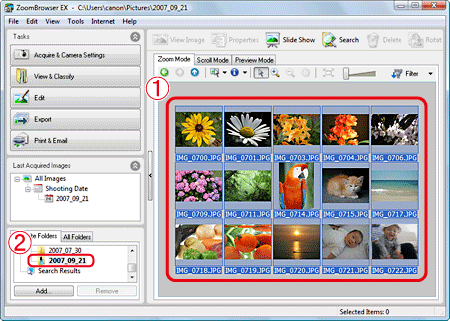
 Browser area of [ZoomBrowser EX]
 Folder in which images are saved