







Procedure to set and change for printer driver port
Solution
To print from a computer, you must install a printer driver and specify a setting for the machine destination. The machine destination setting differs depending on the print application used for printing. Use the following information as a guide to determine the print application you are using, and then perform the necessary
operations.
- LPD: This is the print application generally used with TCP/IP.
- Raw: This is a print application used with Windows 2000/XP/Server 2003/Vista. It can print at higher speeds than LPD.
NOTE
In the following procedures, items displayed on the screen for Windows XP are used; items might differ depending on your operating system.
- For Windows Vista, click [Start] on the Windows task bar → [Control Panel] → [Printer] under [Hardware and Sound].
- For Windows 2000, click [Start] on the Windows task bar → [Settings] → [Printers].
- For Windows XP Professional/Server 2003, click [start] on the Windows task bar → [Printers and Faxes].
- For Windows XP Home Edition, click [start] on the Windows task bar → [Control Panel] → [Printers and Other Hardware] → [Printers and Faxes].
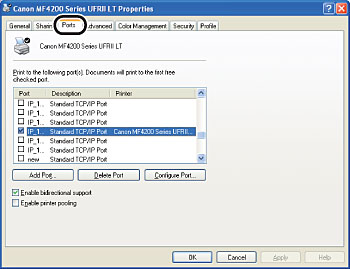
The Add Standard TCP/IP Printer Port Wizard starts.
7. In [Printer Name or IP Address], enter the machine IP address or machine host name → click [Next].
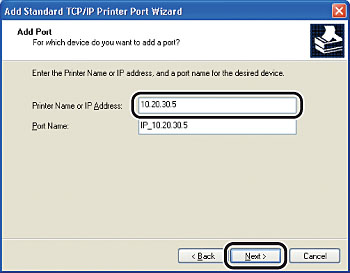
After the computer has confirmed that there is a machine in which the entered IP address is assigned, the [Completing the Add Standard TCP/IP Printer Port Wizard] window appears.
If the dialog box displays [Additional Port Information Required], follow the instructions on the screen to search again, or click [Standard] → click [Canon Network Printing Device with P9100] from the pull-down list → click [Next].
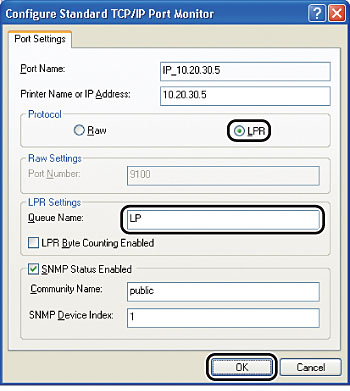
10. In the printer properties dialog box, click [Configure Port] → Click [LPR] under [Protocol] → enter a print queue in [Queue Name] under [LPR Settings].
If you want to use Raw, confirm [Raw] under [Protocol] is selected, and proceed to step 11.
NOTE
You can specify a print queue in [Queue Name]. The following three print queues are available:
- LP: The machine prints according to its spool settings. Normally select this option.
- SPOOL: The machine prints only after spooling a print job on the hard disk, regardless of its spool settings.
- DIRECT: The machine prints without spooling a print job on the hard disk, regardless of its spool settings.