






Setting Up Remote Shooting
Setting Up Remote Shooting
The [remote shooting] function enables you to control a connected camera from your computer.
|
Cautions:
|
||
|
|
-
|
For these operations, [ZoomBrowser EX] should be installed from the bundled CD-ROM (Solution Disk).
|
|
|
-
|
[Remote shooting] is only available with certain camera models, which list it as one of the features in the [Specifications] section of the Camera User Guide.
|
|
|
-
|
Ensure that you turn off your computer’s standby feature before you begin [remote shooting].
|
|
|
-
|
Except for the <shutter button>, the camera’s buttons cannot be operated while the camera is being remotely controlled.
|
|
|
-
|
The time lag between pushing the <shutter button> and the release of the shutter is slightly longer for [remote shooting] compared with the normal mode of operation.
|
|
|
-
|
Setting items and button names may differ according to the camera model.
|
|
|
-
|
The following instructions are intended for Windows Vista. The screen images and operations may differ slightly in Windows XP and Windows 2000.
|
1. Connect the camera’s [DIGITAL Terminal] and the PC’s USB terminal with the [Interface Cable] supplied with the camera
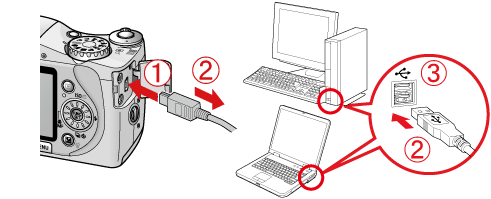
 Camera’s [DIGITAL Terminal]
 [Interface Cable]
 PC’s USB terminal
2. Turn on the camera.
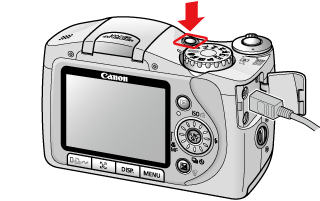
3. The following window appears. Click the ( ) button to close the window.
) button to close the window. 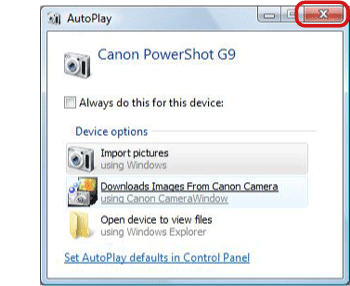
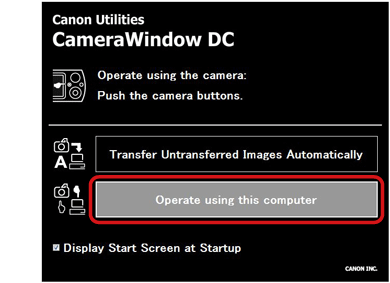
4. If the following window appears, click [Operate using this computer]. If this window does not appear, go to step 6.
5. The following window appears. Click the ( ) button to close the window.
) button to close the window. 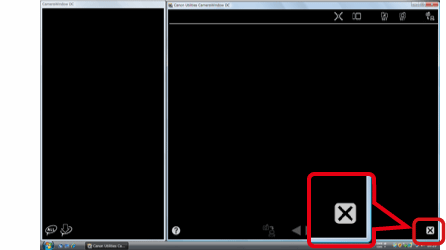
6. Click [Start] ( ) → [All Programs] or [Program] → [Canon Utilities] → [Camera Window] → [Camera Window] → [RemoteCapture DC3] → [RemoteCapture DC] in this order, and select [RemoteCapture DC] to start.
) → [All Programs] or [Program] → [Canon Utilities] → [Camera Window] → [Camera Window] → [RemoteCapture DC3] → [RemoteCapture DC] in this order, and select [RemoteCapture DC] to start.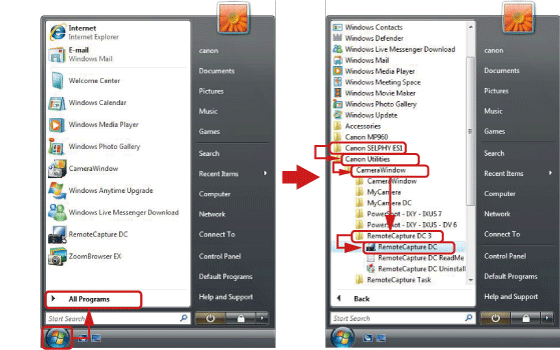
7. The following window appears, and [RemoteCapture DC] starts.
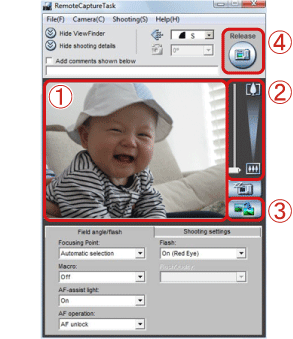 A image to be taken appears in the [Viewfinder].Set the camera [zoom]. Reset the [focus], [exposure], and [white balance] of the image in the [Viewfinder].
 Click the (
 ) button once before shooting an image to check if the image is in [focus]. (This operation is equivalent to half-pressing the camera’s <shutter button> at normal shooting.)
 Click the () button to shoot the image. You can also shoot by pressing the camera’s <shutter button> or the <space bar> on the keyboard.
Changing the shooting settings
To change the shooting settings, follow the instructions below.
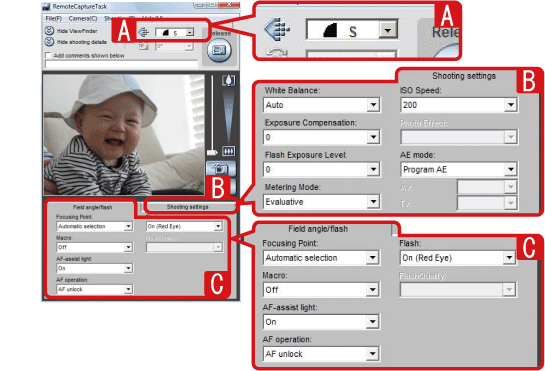
 Set the image quality and image size.
 Set the [White Balance], [ISO speed], [Exposure Compensation], [Photo Effect], [Flash Exposure Level], [AE mode], and [Metering Mode].
 Set the [Focusing Point], [Flash], [Macro], [Flash Quality], [AF-assist light], and [AF operation].
 Settings that need to be set on the camera itself or functions that the camera does not support cannot be changed in this window.
For example, if it is necessary to lift the <flash> with your finger to make it work, if you do not lift the <flash> ahead of time, you will not be able to make settings in the [flash] field.
For example, if it is necessary to lift the <flash> with your finger to make it work, if you do not lift the <flash> ahead of time, you will not be able to make settings in the [flash] field.
Checking and changing the destination for saving images
1. Select [Preferences] from the [File] menu in [RemoteCapture DC].
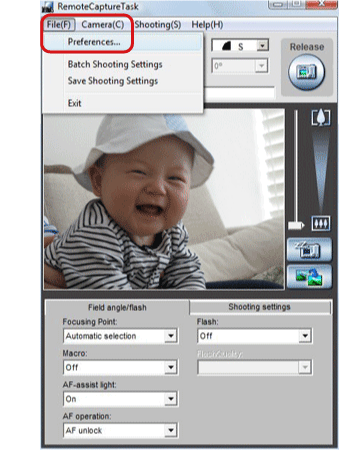
2. The following window appears.
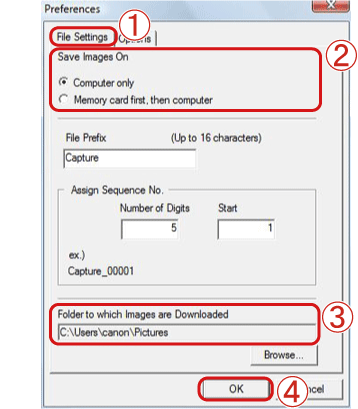 Select the [File Settings] tab.On the [Save Images On] field, select [Computer only] or [Memory card first, then computer] for where you want to record the images.Specify the destination to save the images in the [Folder to which Images are Downloaded] field. By default, the destination for saving images is set to [Pictures] or [My Pictures]. Click [OK] to close the window.
[Interval timer shooting] and [Timer shooting]
In order to shoot images at set intervals of time or shoot an image after a set number of seconds, click the [Shooting] menu in RemoteCapture DC and select [Interval Timer Shooting] or [Timer Shooting].
[Shooting] menu in RemoteCapture DC and select [Interval Timer Shooting] or [Timer Shooting].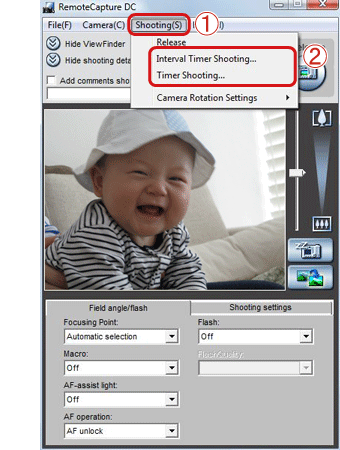
[Interval Timer Shooting]: Shoots images at set intervals of time
[Timer Shooting]: Shoots an image a set number of seconds later
[Timer Shooting]: Shoots an image a set number of seconds later
This completes the process of setting up remote shooting.