







Trimming images using ZoomBrowser EX
Trimming Images Using ZoomBrowser EX
|
Note:
|
||
|
|
-
|
ZoomBrowser EX from the supplied Solution Disk must be installed on your computer for this operation.
|
|
|
-
|
Operations for Windows Vista are explained here. Images displayed or operation might differ slightly in Windows XP and Windows 2000.
|
|
|
-
|
As the actual locations of buttons/switches on cameras vary depending on the camera model, the illustrations that appear on this page may differ from your camera.
|
1. Double-click the [ZoomBrowser EX] shortcut icon on your desktop to start [ZoomBrowser EX].

If you cannot find the [ZoomBrowser EX] shortcut icon on your desktop, click [Start] ( )à [All Programs] or [Programs] à [Canon Utilities] à [ZoomBrowser EX] and select [ZoomBrowser EX] to start ZoomBrowser EX.
)à [All Programs] or [Programs] à [Canon Utilities] à [ZoomBrowser EX] and select [ZoomBrowser EX] to start ZoomBrowser EX.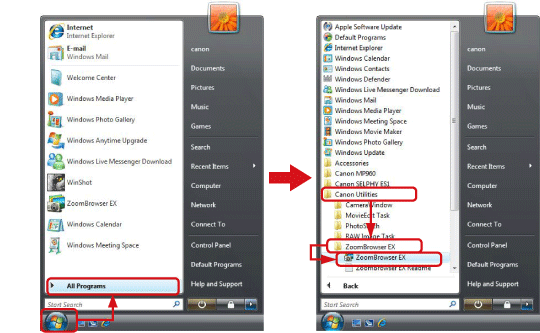
2. The following screen appears.
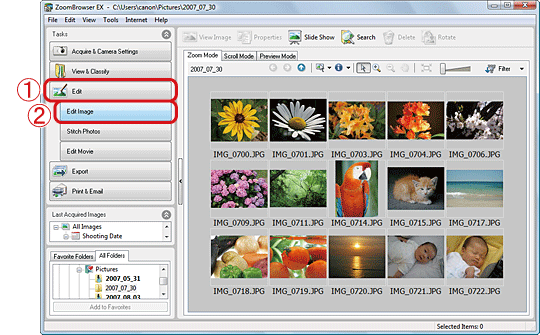
 Click [Edit].
 Then click [Edit Image].
3.The following screen appears.
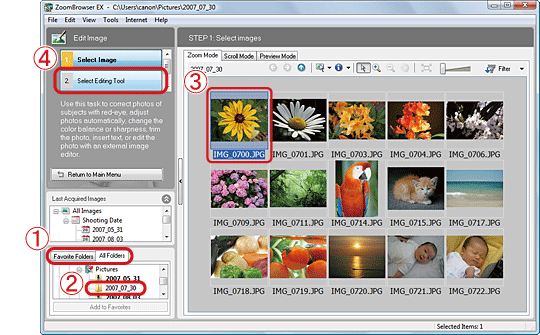 Click either the [Favorite Folders] tab or the [All Folders] tab. Select the folder that contains the images to trim (Usually images are saved in the [Pictures] or [My Pictures]).
 Click the image to trim.
 Click [Select Editing Tool].
4. The following screen appears.
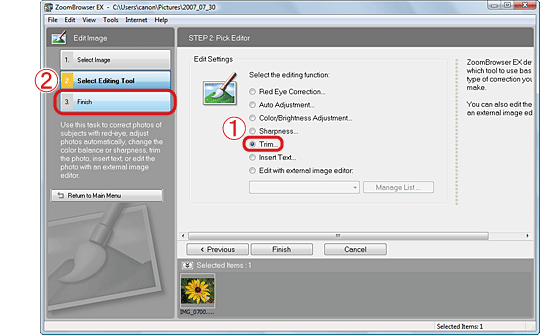 Select [Trim]. Then click [Finish].
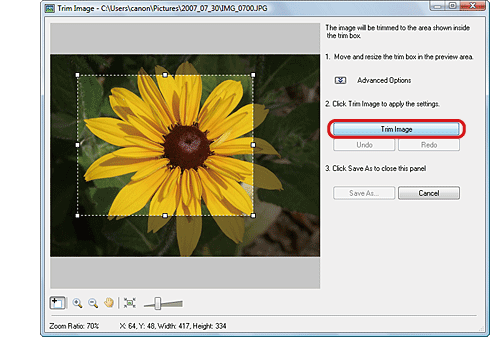
5. The trim area will be displayed on the [Trim Image] screen.
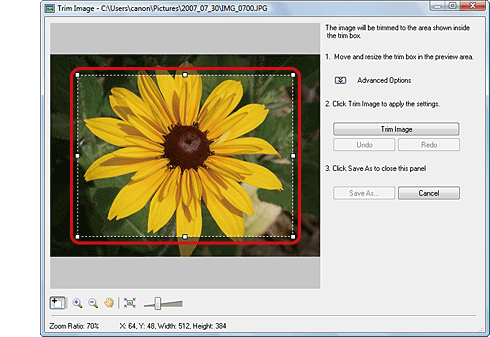
6. To change the trim area, select one of the selection handles (□) on the trim area and drag it while holding the left mouse button down.
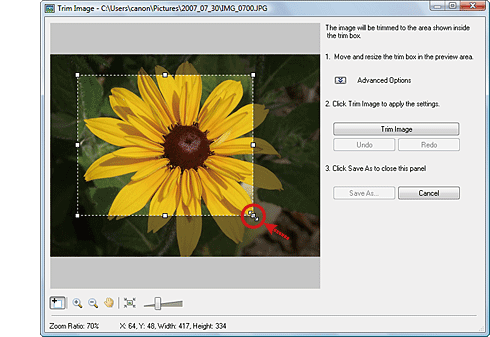
7. When you decide the trim area, click [Trim Image].
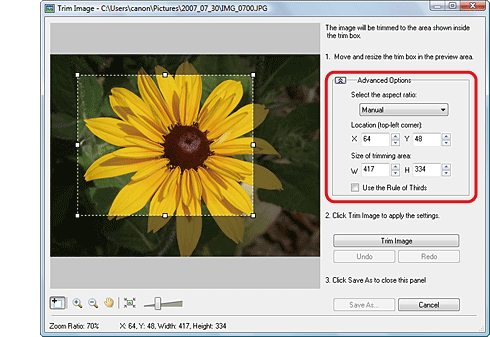
If you click [Advanced Options], you can specify the trim area using specific values and set the aspect ratio.
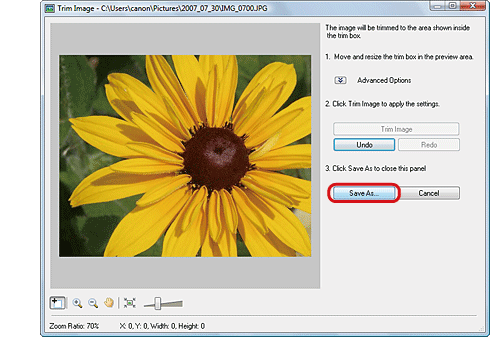
8. Click [Save As].
9. The following screen appears.
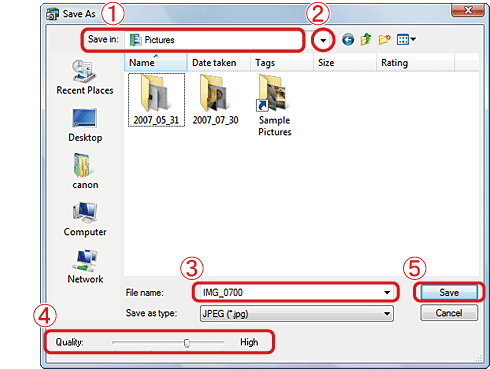 Check the destination where the file will be saved. Click (
 ) to change the destination and select a new one. Name the file (If you don’t change the file name, the original image will be overwritten). Set the image quality as desired.
 Click [Save] to save the image.
This completes the trimming procedure.